Campaign
How do I use the conversion pixel?

Author
Koray Soygün
30 Apr 2026
Measure conversions reliably and attribute them to your campaigns. Learn how to correctly create and install the conversion pixel.

Overview
With the Conversion Pixel from AdUp Technology, you measure conversions and assign them to your campaigns. This allows you to identify which advertisements, keywords, or placements are achieving the best results.
Typical conversions include:
Purchases
Registrations
Contact enquiries
Newsletter signups
Page impressions of specific landing pages
A prerequisite for tracking is at least one active campaign in your advertiser account.
How Conversion Tracking works
For each desired conversion, you create an individual conversion code in the advertiser frontend.
You then integrate this code on the page where the conversion is completed — for example, on the:
order confirmation page
thank-you page
registration confirmation
successful form submission
Tracking is carried out via an embedded <img> tag.
As soon as a user reaches your website via an AdUp ad, temporary tracking information is stored. If the conversion pixel is subsequently loaded, the conversion can be assigned to the corresponding campaign.
Creating Conversion Code
Step 1: Log in
Log in to the advertiser frontend with your access details.
Step 2: Open Conversion Tracking
Navigate to:
Tools → Conversion Tracking
Step 3: Create new conversion code
Click on:
Create conversion code
Step 4: Configure conversion
Assign:
a unique name
a conversion type
Available types:
Enquiry
Registration
Page view
Sale
Other
This classification is used exclusively for internal organisation.
Step 5: Define conversion value (optional)
Optionally, you can store a fixed conversion value.
Alternatively, you can pass the value to the pixel dynamically at a later stage via URL parameters.
Example:
&total=199.99
Step 6: Set counting method (optional)
You can define an individual counting method for each conversion code.
Count every conversion
Every valid conversion after an ad click is recorded.
Suitable for:
recurring purchases
multiple orders
repeated actions
Count unique conversions
Only the first conversion after a click is counted.
Suitable for:
registrations
lead generation
one-off conversions
Step 7: Save
After saving, the new conversion code will automatically appear in the overview.
There you will also find the complete integration code.
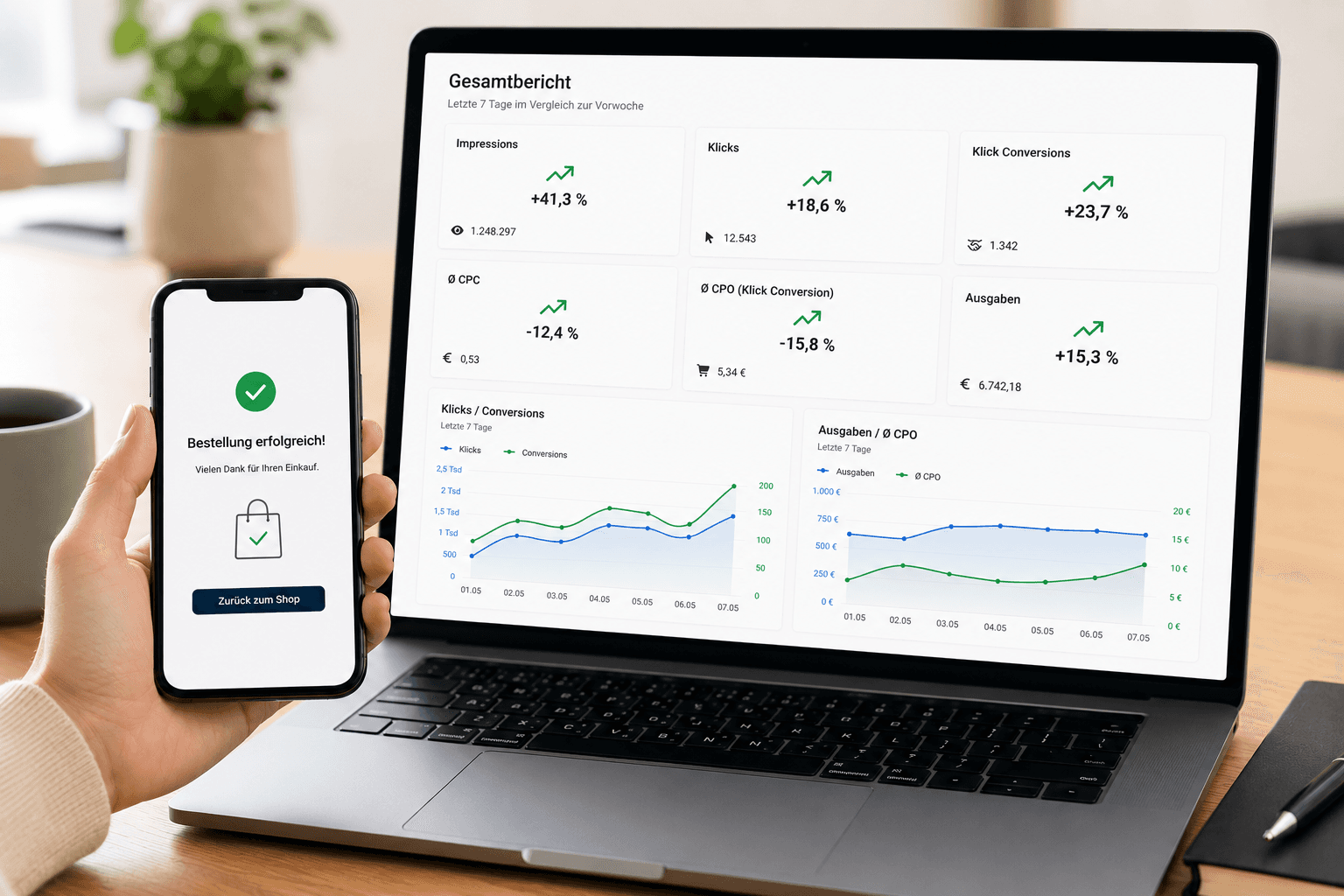
Integrating the Conversion Pixel on your website
Pixel Integration
Integrate the conversion pixel within the <body> section of the page where the conversion is completed.
Example:
You can find the unique integration code in the advertiser frontend under:
Tools → Conversion Tracking → Actions → Integration Code
Tracking multiple conversions
You can create as many conversion codes as you like.
This allows you to measure different conversion goals separately, for example:
Completed purchase
Newsletter subscription
Contact form
Demo request
Each conversion code can be integrated on a different target page.
Required parameters
Parameter: t
The t parameter contains your unique conversion code.
Requirements
maximum 255 characters
UTF-8 and URL-encoded
Example
t=ABCDEF
Optional parameters
Parameter: order_id
Unique order or transaction number.
Used for deduplicating conversions.
Requirements
maximum 25 characters
UTF-8 and URL-encoded
Example
order_id=A12345
Parameter: total
Passes the total value of the conversion.
Requirements
maximum of two decimal places
decimal separation with a dot
no thousands separators
maximum value:
99999.99
Example
total=399.98
Parameter: item_number
Optional item or product number.
Requirements
maximum 25 characters
UTF-8 and URL-encoded
Example
item_number=EF_7890
Best Practices
Only integrate pixel on conversion pages
The conversion pixel should only be loaded on pages where a conversion actually occurs.
Use dynamic values
Pass order values and order IDs dynamically in order to:
correctly evaluate revenues
prevent duplicate conversions
optimise campaigns more precisely
Test function after integration
Check after integration:
whether the pixel is loaded
whether the URL format is correct
whether all parameters are passed correctly
Common sources of error
Pixel is loaded on multiple pages
This can result in duplicate conversions.
Missing URL encoding
Parameters should always be transmitted URL-encoded.
Invalid value formats
Pay particular attention to the correct number format for the total parameter.
Correct:
399.98
Incorrect:
399,98